---
title: How do I download dashboards in Analyse?
description: Learn how to download reports, export dashboard data, and share insights with your team in Analyse.
---
[Skip to content](https://dataeq.com/knowledge-base/how-do-i-send-and-download-reports-in-analyse#main-content)
[](https://www.dataeq.com)
Open main navigation
Close main navigation
- Contact us
Contact us
How can we help you?
- There are no suggestions because the search field is empty.
1. [Knowledge Base](https://dataeq.com/knowledge-base)
2. [Analyse](https://dataeq.com/knowledge-base/analyse)
3. [The Reports Panel](https://dataeq.com/knowledge-base/analyse#the-reports-panel)
# How do I download dashboards in Analyse?
## Learn how to download reports, export dashboard data, and share insights with your team in Analyse.
Analyse allows you to **export dashboards and metrics** as images or CSV files for reporting and sharing purposes. You can also **email reports** directly to team members for real-time collaboration.
---
#### **How to Download Reports from Analyse**
This guide will walk you through the process of downloading dashboards in Analyze.
### Go to [analyse.dataeq.com](https://analyse.dataeq.com)
### 1. Click "Reports"
Navigate to the Reports panel.
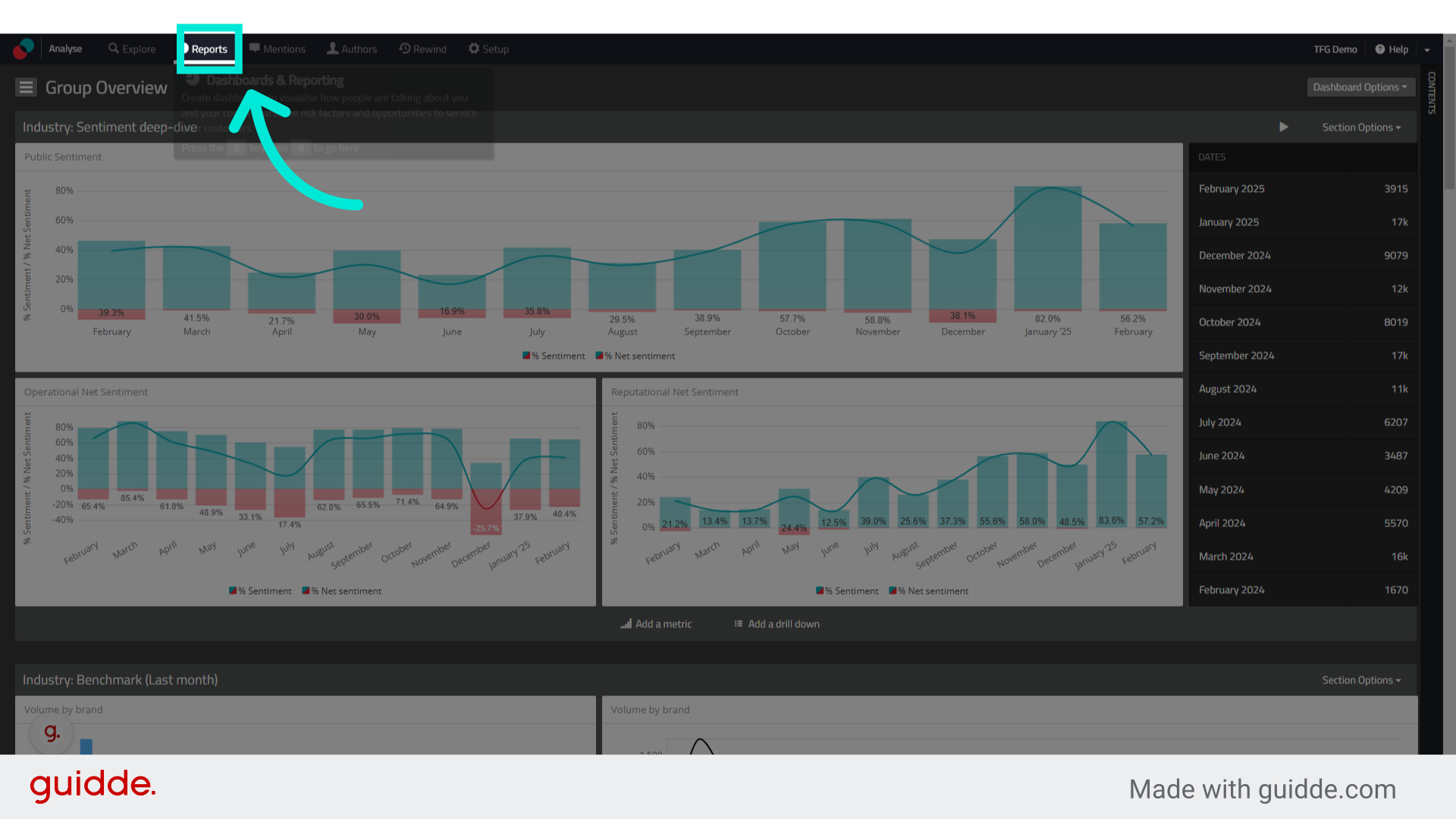
### 2. Click here to access the dashboard library
Access the dashboard library.
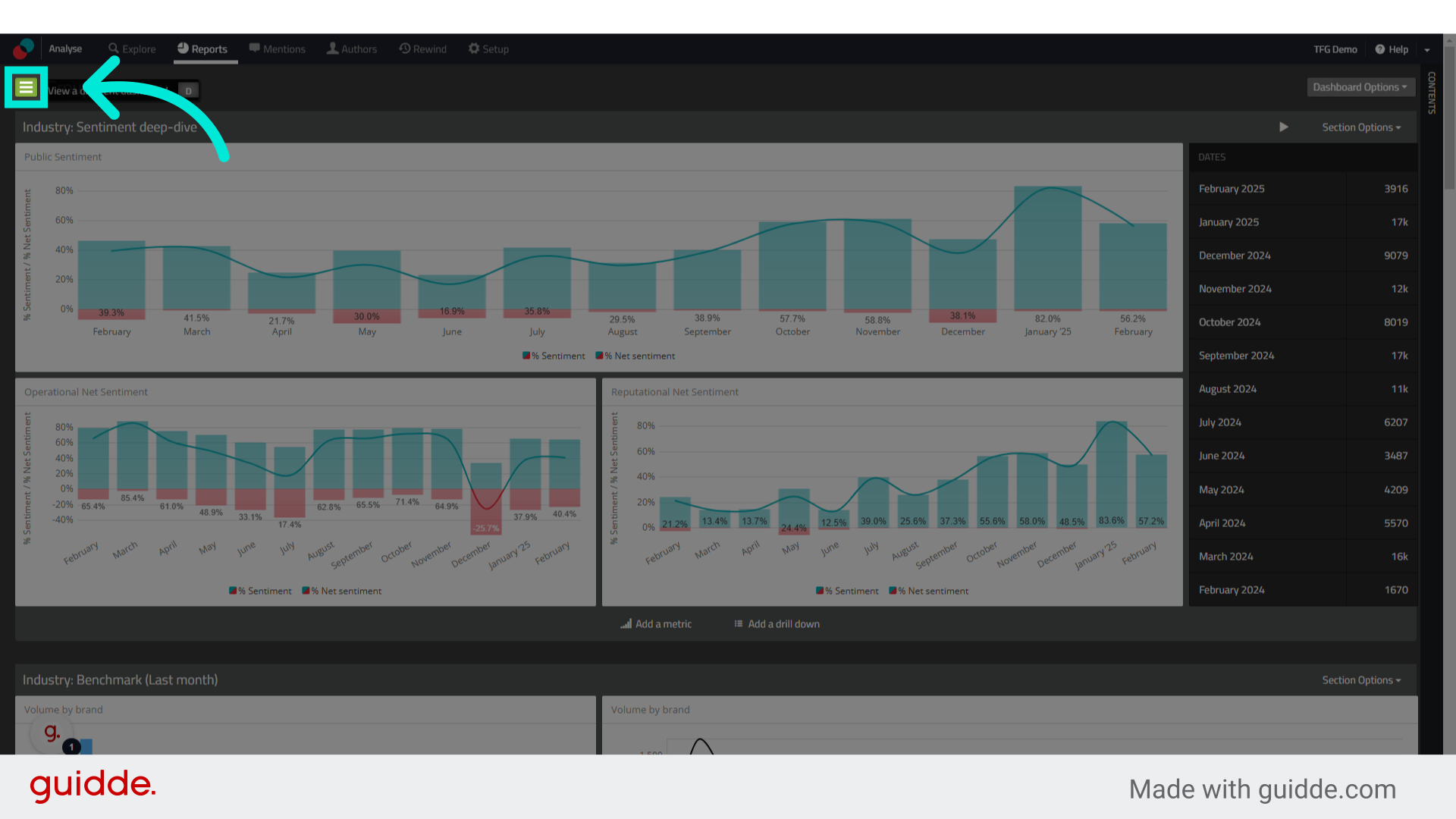
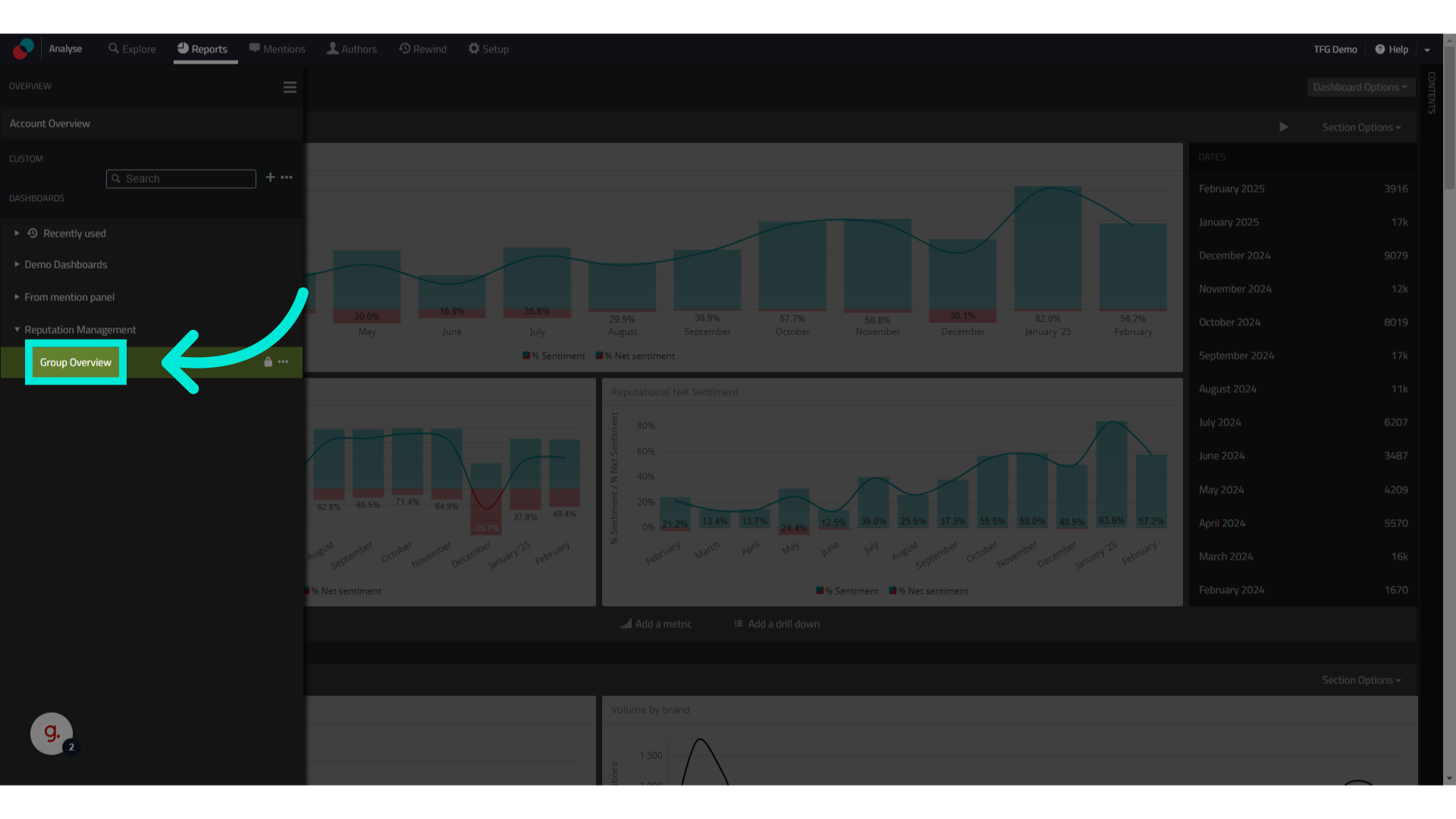
### 3. Select the dashboard you wish to download
Select the dashboard you wish to download
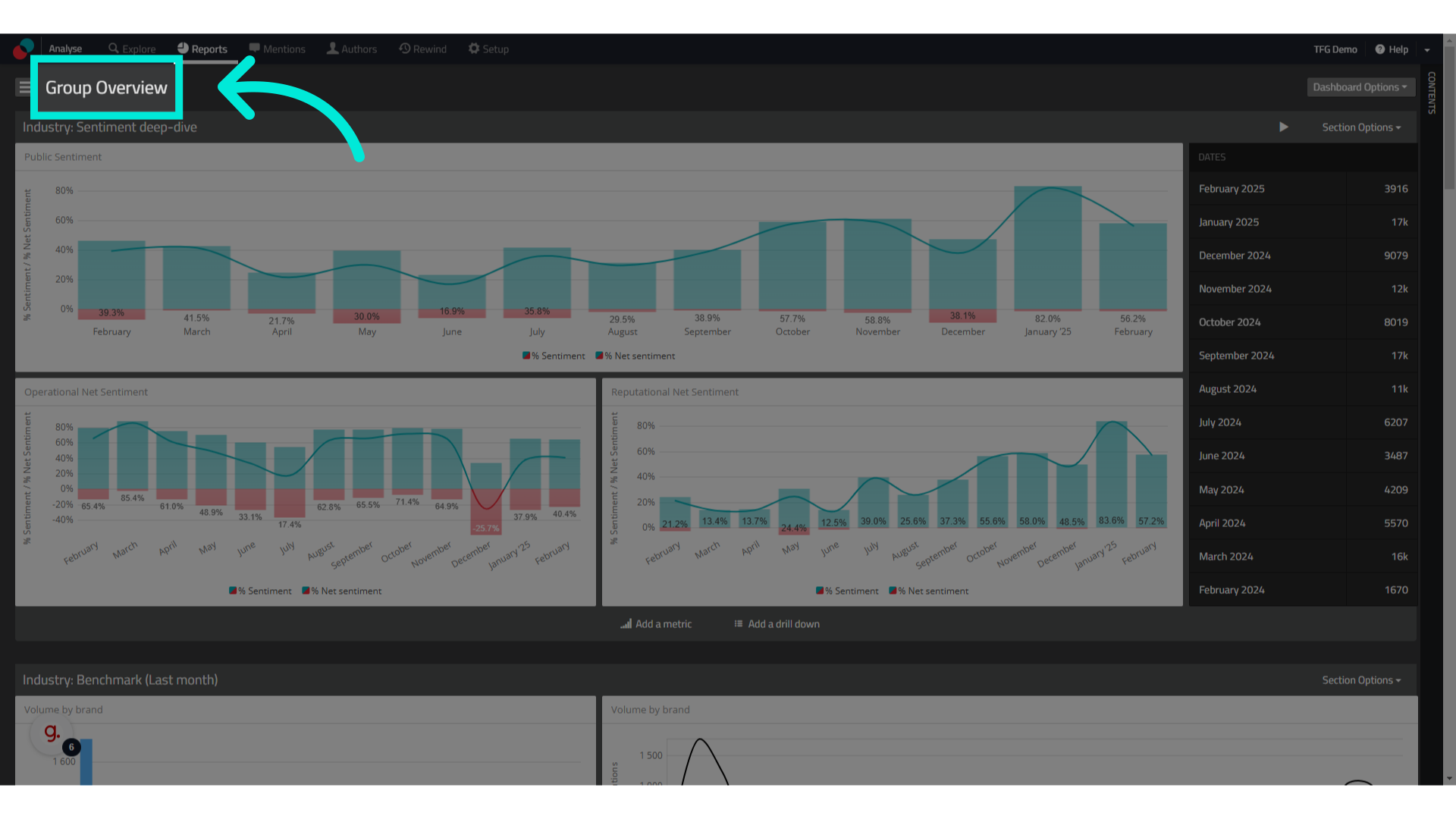
### 4. Click on the name of your dashboard
Click on the name of your dashboard
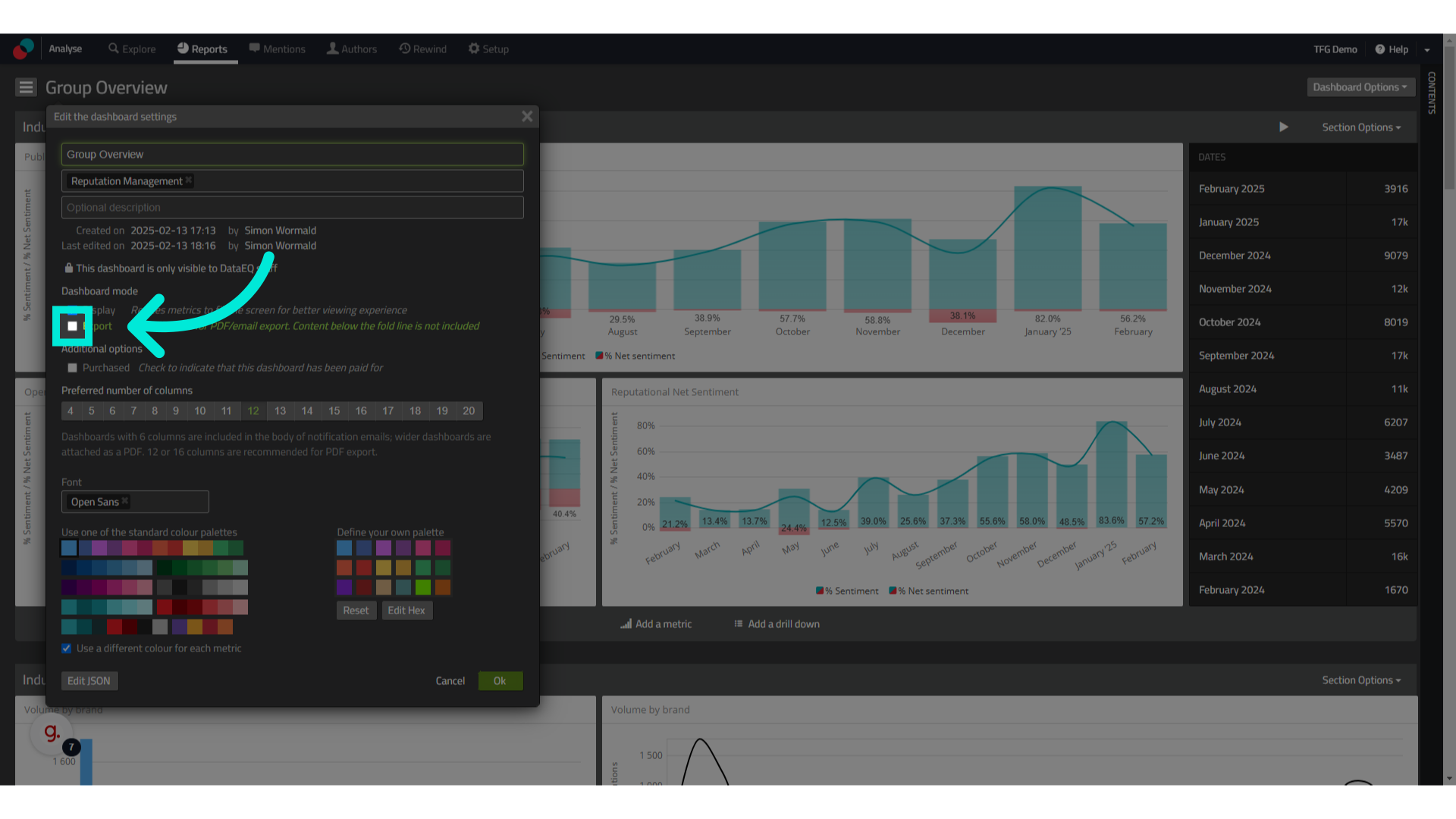
### 5. Set it to "Export".
Set it to export
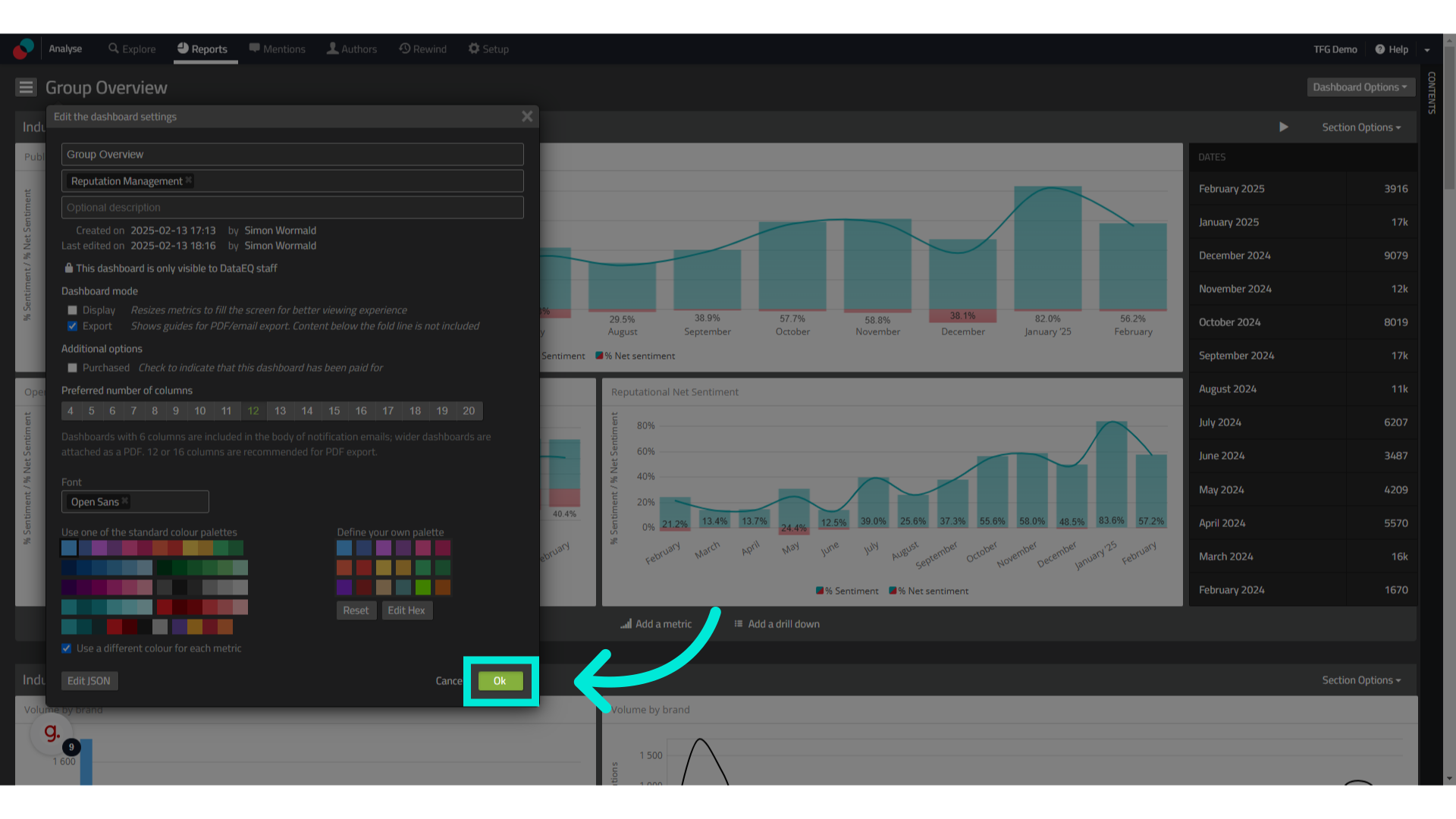
### 6. Click "Ok"
Click "Ok"
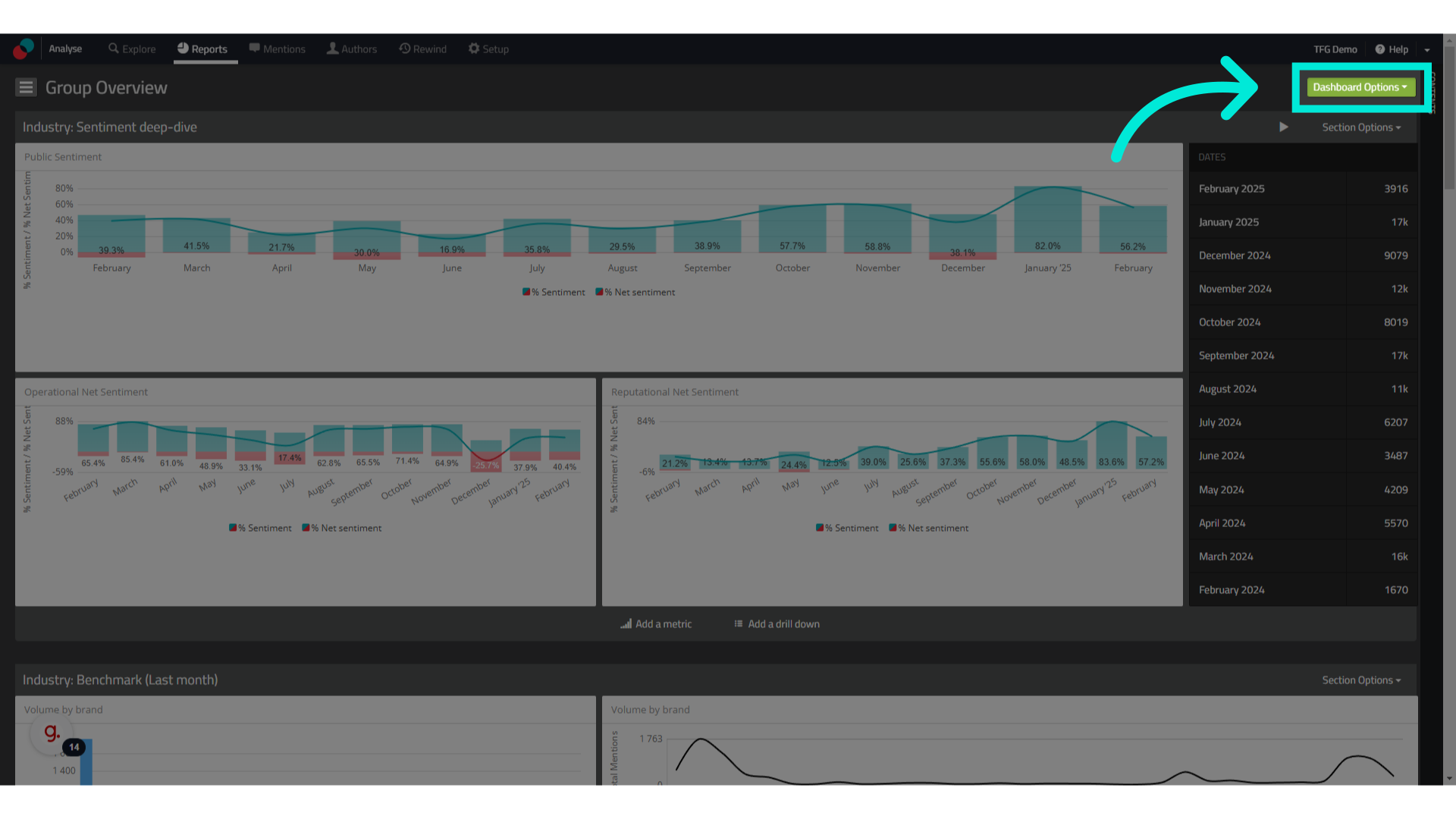
### 7. Select "Dashboard Options"
Select "Dashboard Options"
### 8. Click "Download as PDF"
Choose the Download as PDF option.
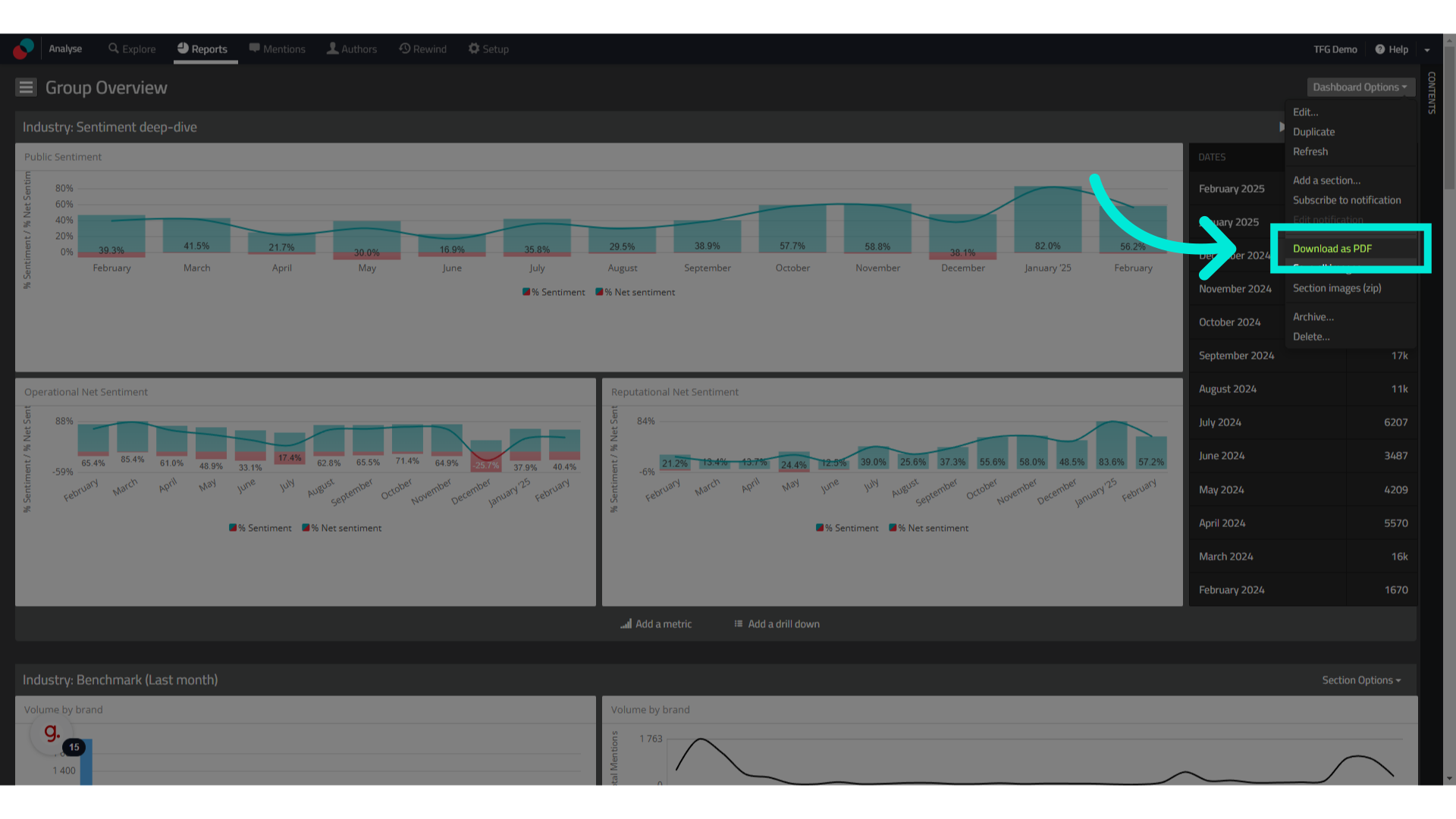
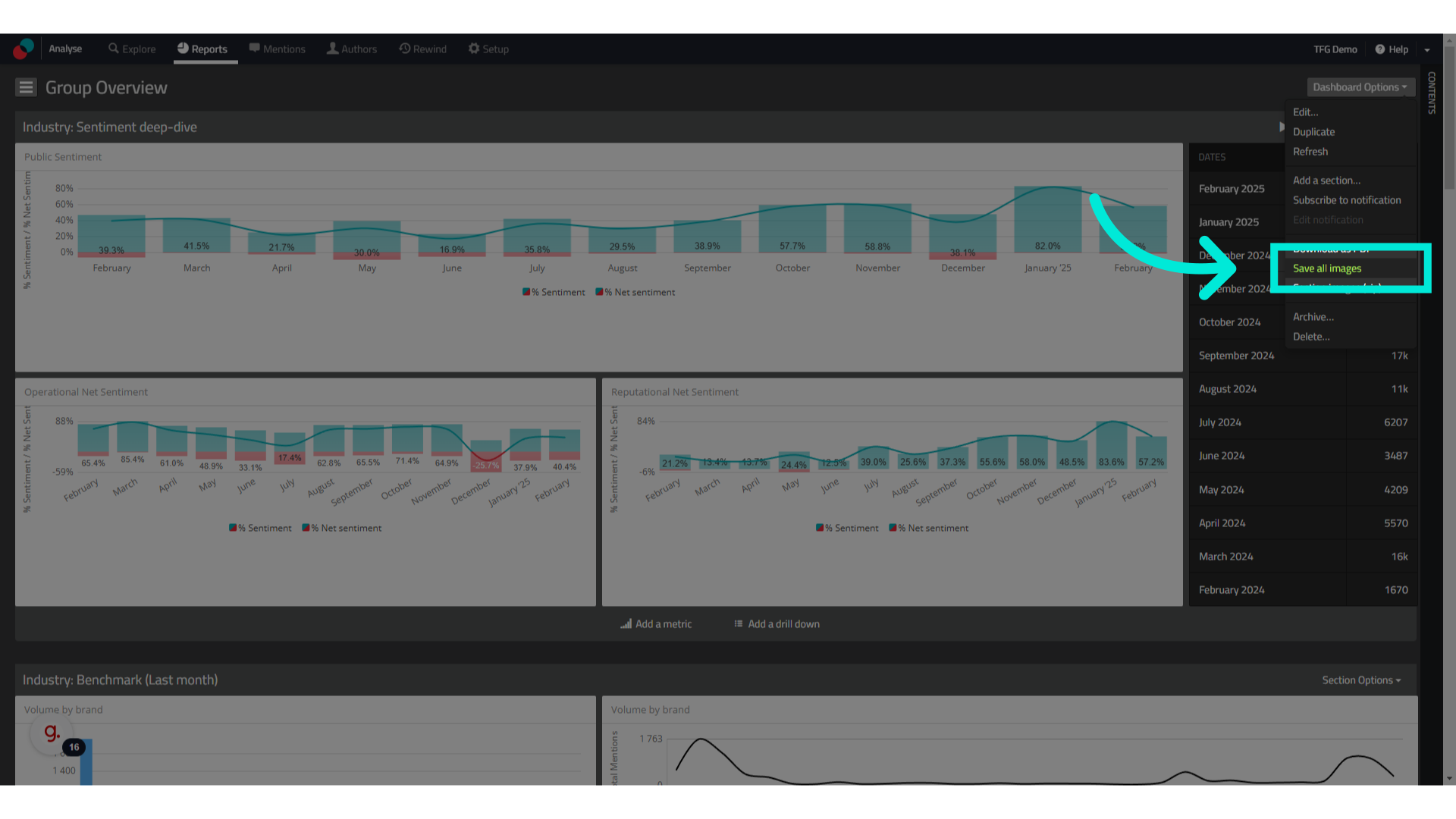
### 9. Or select "Save all images"
Alternatively, you are also able to save all images as a zip file by selecting the "Save all images" option.
[Powered by **guidde**](https://www.guidde.com)
**Downloading an Individual Metric or Section**
1. Open your **dashboard** and locate the metric you want to export.
2. Click on the **dropdown arrow** (metric options) in the top-right corner of the metric. This arrow is sometimes invisible but hovering over the top right corner of a metric will reveal the arrow.
3. Select **Save all images** or **Export as CSV**.
4. Save the file to your computer.
---
#### **How to Send Reports via Email**
**Setting Up Automated Email Reports**If you want to **automatically send reports** at specific intervals:
1. Navigate to **Setup** on the navigation bar.
2. Click on **Emails and** **Notifications** in the **Settings** section.
3. Select **Add a Notification**.
4. Choose the **dashboard or data set** to include.
5. Set the **frequency** (daily, weekly, or monthly).
6. Add recipient email addresses and click **Save**.
---
#### **Best Practices for Sending & Downloading Reports**
- **Use CSV exports** if you need to analyse raw data in Excel.
- **Download images** for presentations or quick visual reporting.
- **Automate reports** to keep stakeholders updated on key trends.
- **Always check filters** before exporting to ensure you’re capturing the right data.
---
#### **Troubleshooting Export & Email Issues**
1. **Issue: “I can’t download the dashboard”**
1. Ensure you have **dashboard access permissions**.
2. Try refreshing the page and exporting again.
3. Use a **supported browser** (Chrome, Firefox, Safari).
2. **Issue: “The recipient didn’t receive the email”**
1. Ask them to check their **spam or junk folder**.
2. Verify that the email was entered correctly.
3. Ensure that **automated emails are enabled** in settings.
- [Analyse](https://dataeq.com/knowledge-base/analyse#main-content)
- [Metrics and Drill Downs](https://dataeq.com/knowledge-base/analyse#metrics-and-drill-downs)
- [Exploring Authors](https://dataeq.com/knowledge-base/analyse#exploring-authors)
- [Alerts and Notifications](https://dataeq.com/knowledge-base/analyse#alerts-and-notifications)
- [The Reports Panel](https://dataeq.com/knowledge-base/analyse#the-reports-panel)
- [Getting Started on Analyse](https://dataeq.com/knowledge-base/analyse#getting-started-on-analyse)
- [Visualising Conversation Topics](https://dataeq.com/knowledge-base/analyse#visualising-conversation-topics)
- [Mentions Panel](https://dataeq.com/knowledge-base/analyse#mentions-panel)
- [Labelling Data](https://dataeq.com/knowledge-base/analyse#labelling-data)
- [Filtering and Analysing Data](https://dataeq.com/knowledge-base/analyse#filtering-and-analysing-data)
- [Engage](https://dataeq.com/knowledge-base/engage#main-content)
- [User Roles & Permissions](https://dataeq.com/knowledge-base/engage#user-roles-permissions)
- [Reporting and Analytics](https://dataeq.com/knowledge-base/engage#reporting-and-analytics)
- [Additional Features](https://dataeq.com/knowledge-base/engage#additional-features)
- [Tips & Troubleshooting](https://dataeq.com/knowledge-base/engage#tips-troubleshooting)
- [Ticket Management](https://dataeq.com/knowledge-base/engage#ticket-management)
- [Getting Started](https://dataeq.com/knowledge-base/engage#getting-started)
- [Working with Tickets](https://dataeq.com/knowledge-base/engage#working-with-tickets)
- [Publish](https://dataeq.com/knowledge-base/publish#main-content)
- [Multi-Platform Publishing](https://dataeq.com/knowledge-base/publish#multi-platform-publishing)
- [Getting Started with Publish](https://dataeq.com/knowledge-base/publish#getting-started-with-publish)
- [Creating and Managing Content](https://dataeq.com/knowledge-base/publish#creating-and-managing-content)
- [Campaigns and the Content Calendar](https://dataeq.com/knowledge-base/publish#campaigns-and-the-content-calendar)
- [Approval Workflows](https://dataeq.com/knowledge-base/publish#approval-workflows)
- [Reporting & Logs](https://dataeq.com/knowledge-base/publish#reporting-logs)
- [Glossaries](https://dataeq.com/knowledge-base/glossaries)
- [Data Source Information](https://dataeq.com/knowledge-base/data-source-information#main-content)
- [What can we collect?](https://dataeq.com/knowledge-base/data-source-information#what-can-we-collect)
- [Platform FAQs](https://dataeq.com/knowledge-base/data-source-information#platform-faqs)
[-1.png?width=90&height=32&name=DataEQ_Logo_FOR%20USE%20ON%20LIGHT%20BACKGROUND.png%20(1)-1.png "Chill listening crop-3")](https://25676464.hs-sites-eu1.com/)
Copyright © 2025, DataEQ